
GTK and Qt Applications
This guide covers theming applications built with GTK, Qt, and KDE Plasma toolkits.
GTK 3/4 Applications
Section titled “GTK 3/4 Applications”GTK applications include most GNOME apps and many Linux applications. Noctalia can automatically theme them using the adw-gtk3 theme.
-
Install required packages:
Terminal window # Arch Linux / Manjaroparu -S adw-gtk-theme nwg-look# Other distributions# Install adw-gtk-theme and nwg-look from your package manager -
Apply the GTK theme:
-
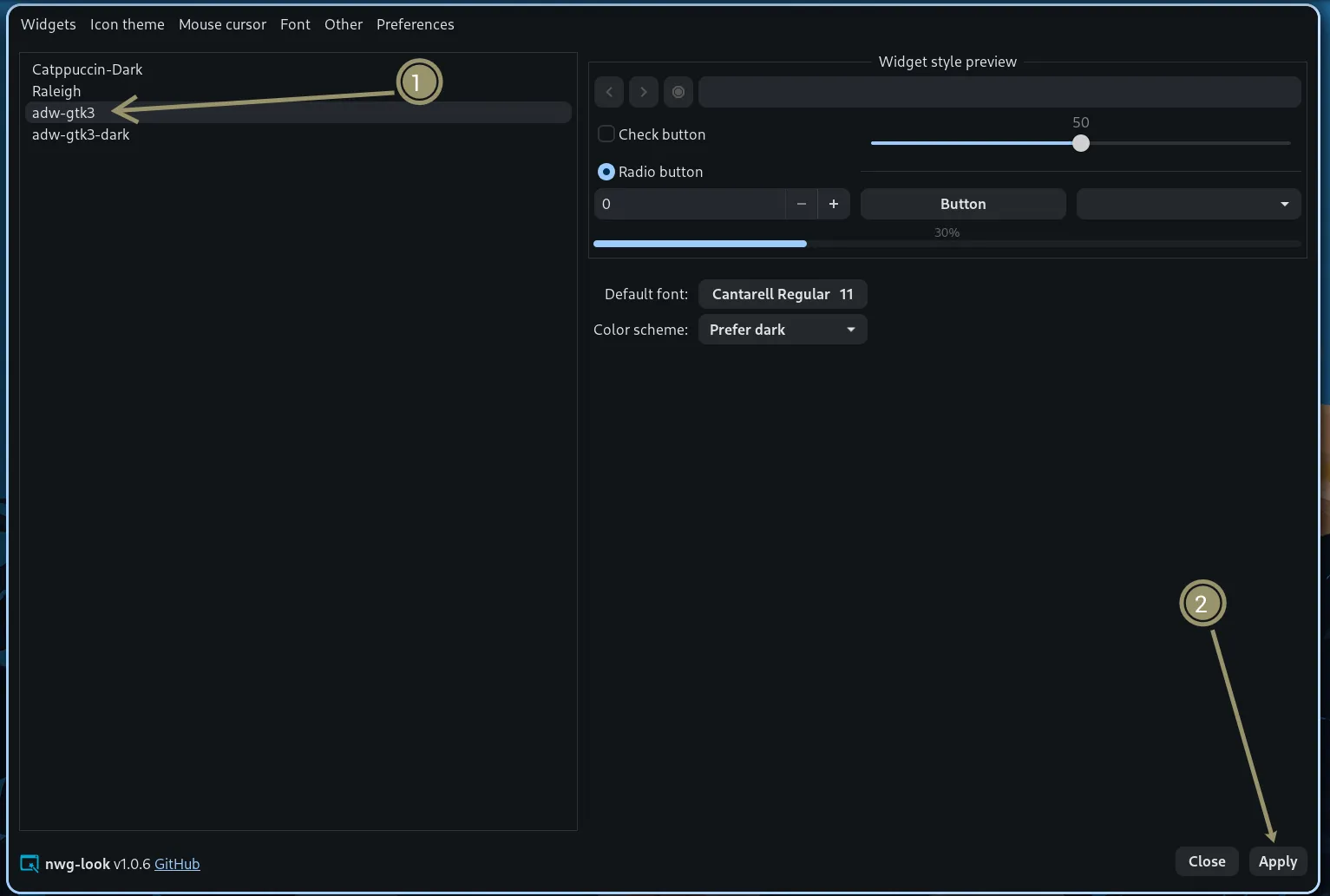
Using nwg-look (recommended):
- Open
nwg-look - Select
adw-gtk3from the theme list - Click “Apply”
- Open
-
Using command line:
Terminal window gsettings set org.gnome.desktop.interface gtk-theme 'adw-gtk3'
-
-
Enable GTK theming in Noctalia:
- Open Settings → Color Scheme → Templates
- Toggle on GTK
Troubleshooting
Section titled “Troubleshooting”- Theme not applying: Completely restart GTK applications (close and reopen)
- Some apps still look wrong: Some GTK apps may need GTK 4 theme separately:
Terminal window gsettings set org.gnome.desktop.interface gtk-theme 'adw-gtk3'gsettings set org.gnome.desktop.interface color-scheme 'prefer-dark' # or 'prefer-light' - Flatpak apps: Flatpak apps may need the theme installed in their sandbox:
Terminal window flatpak install org.gtk.Gtk3theme.adw-gtk3-darkflatpak install org.gtk.Gtk3theme.adw-gtk3
Qt Applications
Section titled “Qt Applications”Qt applications include KDE apps and many cross-platform applications. Noctalia themes them through qt6ct.
-
Install qt6ct:
Terminal window # Arch Linux / Manjaroparu -S qt6ct# Other distributions# Install qt6ct from your package manager -
Set environment variable: Add this to your window manager configuration or shell profile:
For Niri (
config.kdl):environment {QT_QPA_PLATFORMTHEME "qt6ct"}For Hyprland (
hyprland.conf):env = QT_QPA_PLATFORMTHEME,qt6ctFor Sway (
config):Terminal window setenv QT_QPA_PLATFORMTHEME qt6ctFor shell profile (
~/.bashrcor~/.zshrc):Terminal window export QT_QPA_PLATFORMTHEME=qt6ct -
Enable Qt theming in Noctalia:
- Open Settings → Color Scheme → Templates
- Toggle on Qt
-
Configure qt6ct:
- Run
qt6ctfrom terminal - Go to Color Scheme tab
- Select
noctaliafrom the dropdown - Click Apply and OK
- Run
Troubleshooting
Section titled “Troubleshooting”- Qt apps not themed: Ensure the environment variable is set before launching applications
- qt6ct not found: Make sure qt6ct is installed and in your PATH
- Theme not updating: Restart Qt applications after changing color schemes
KDE Plasma (KColorScheme)
Section titled “KDE Plasma (KColorScheme)”If you’re using KDE Plasma, Noctalia can apply colors through the native KColorScheme system.
-
Enable KColorScheme in Noctalia:
- Open Settings → Color Scheme → Templates
- Toggle on KColorScheme
-
Apply in KDE System Settings:
- Open System Settings → Appearance → Colors
- Select the
noctaliacolor scheme - The scheme will update automatically when you change colors in Noctalia
Troubleshooting
Section titled “Troubleshooting”- Scheme not appearing: Restart KDE Plasma or log out and back in
- Colors not updating: Ensure KColorScheme toggle is enabled in Noctalia settings