
Steam
The official Steam client can be themed using the Noctalia color scheme through the built-in theme system.
This requires the open-source modding framework Millennium and takes advantage of the Material Theme to provide dynamic color integration.
-
Enable Steam theming in Noctalia:
- Open Settings → Color Scheme → Templates
- Toggle on Steam
-
Install Millennium: you can find instructions for your distribution on the installation page.
-
Install Material-Theme: copy the Theme ID from the theme’s page on steambrew.app, and install it in the Millennium Theme settings.
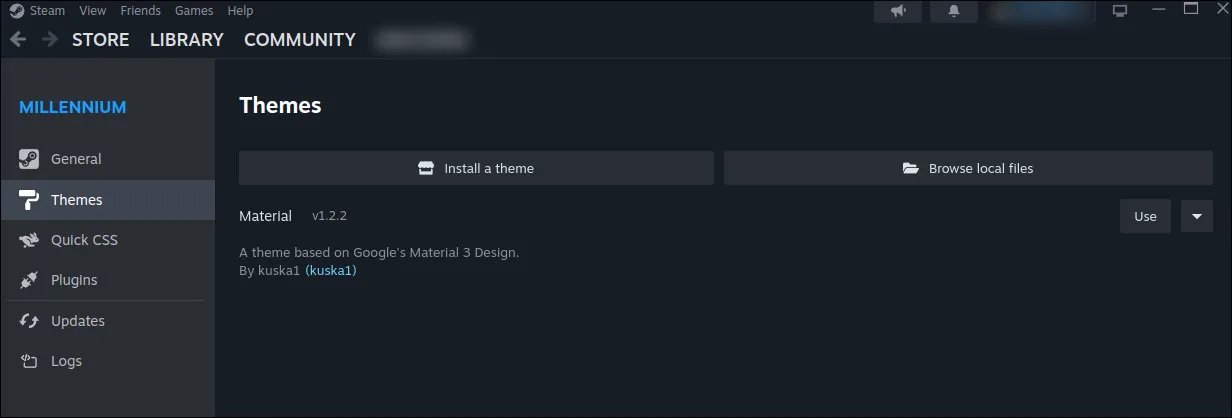
After that, you should see the theme installed but not enabled yet:
-
Enable the theme by clicking on the “Use” button.
-
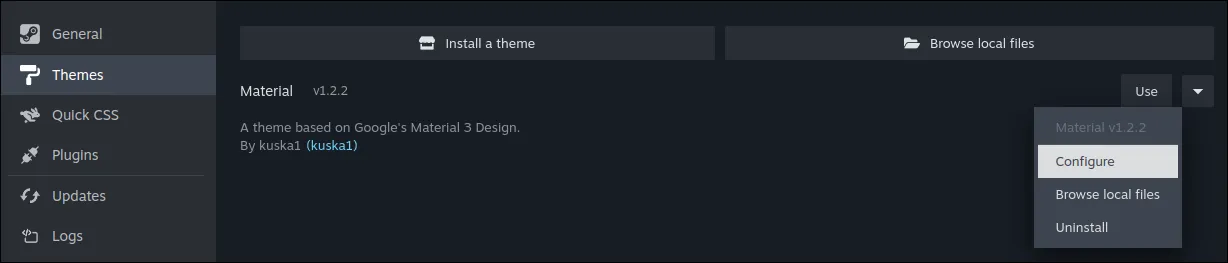
Click on the drop-down on the right to configure the theme:
-
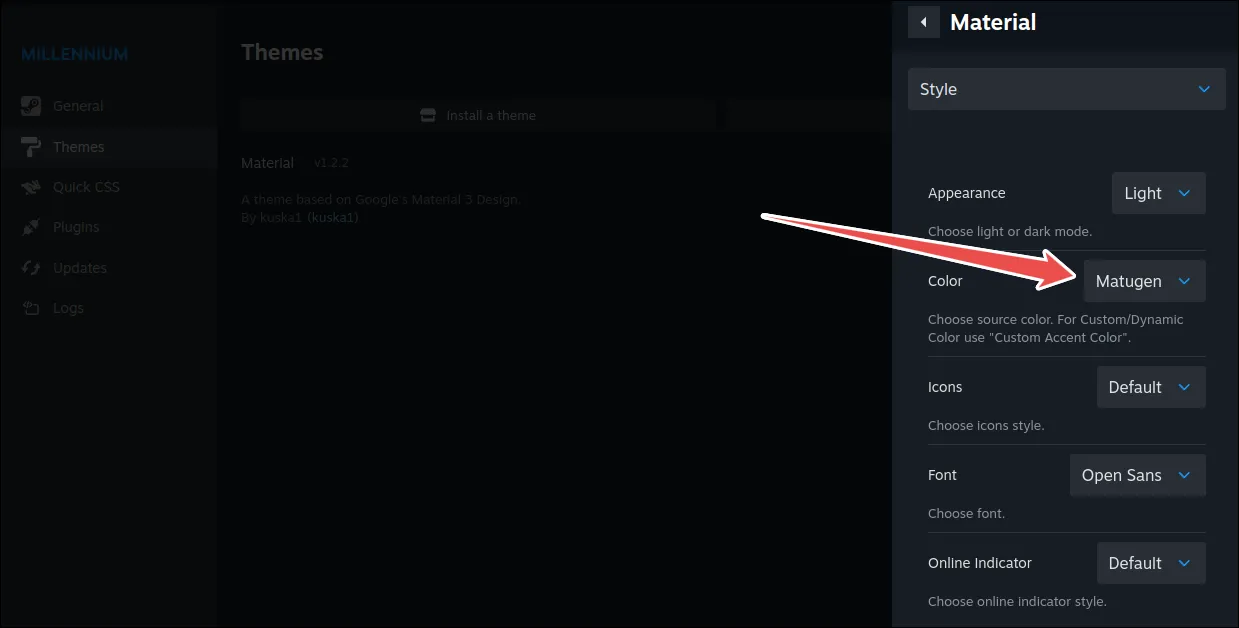
In the “Color” drop-down menu, make sure to select “Matugen”.
- Regenerate a color scheme in Noctalia (for example, toggling dark-light mode, or changing the wallpaper), and restart Steam.
Troubleshooting
Section titled “Troubleshooting”- Theme not appearing: Make sure you’ve enabled the theme in Millennium settings.
- Colors not updating: Restart the Steam client fully (
Steammenu >Exit) after installing the theme and toggling Matugen option. Also make sure Millennium is installed and running correctly. - Theme looks broken: Ensure you’re using the official Steam client and have the latest version of Millennium and Material-Theme.
Additional Notes
Section titled “Additional Notes”The theme will automatically update when you change color schemes in Noctalia.