
Getting started
Starting Umbriel
Section titled “Starting Umbriel”Installed display-manager sessions start Umbriel through start-umbriel. Select Umbriel from your display manager, or start it from a TTY:
start-umbrielThe launcher loads the login profile for supported shells such as bash, zsh, and fish. Environment variables from that profile, including PATH, are available to Umbriel and applications started in the session. Interactive shell files such as ~/.zshrc are not loaded. In a systemd-managed session, the launcher imports the login environment into the user manager before starting Umbriel. Login-profile values take precedence over values with the same names from environment.d; variables found only in the user manager remain available. The direct fallback inherits the same login environment without importing it.
In a systemd-managed native session, Umbriel places startup, autostart, event, and spawn commands in scopes bound to the compositor service, so they are cleaned up when the session ends. This requires systemd 254 or newer.
The compositor service queues the graphical session targets at startup and reports readiness only after its display and IPC sockets are available and its session environment has been published to systemd and D-Bus. Services ordered after graphical-session.target, including desktop portals, wait for that readiness notification. Configured startup commands also wait for the environment import to finish.
Run umbriel directly only for a nested development session or an explicitly unmanaged launch.
dinit sessions
Section titled “dinit sessions”With a running dinit 0.23 or newer user manager, start-umbriel can start the packaged umbriel and umbriel-session services. The user manager needs a dbus service. An explicitly configured, reachable DINIT_SOCKET_PATH selects dinit; otherwise the launcher prefers a reachable systemd user manager and then tries dinit. If neither is available, it launches Umbriel directly.
The launcher imports the login environment, waits for the compositor’s display and IPC sockets and environment publication, and then starts the session services. Configured [environment] values also reach dinit services. Logout and launcher interruption stop the compositor and its dependent services, then clear graphical variables from dinit and D-Bus activation. A compositor crash also stops dependent services and causes the launcher to report failure.
Enable services for the session with:
mkdir -p ~/.config/dinit.d/umbriel-session.ddinitctl --user enable --from umbriel-session my-session-serviceEach session service must include depends-on: umbriel so it waits for compositor readiness and stops before the compositor on logout. Add this dependency in a user service definition or the override mechanism supplied by your distribution. The session target reads enabled services from $HOME/.config/dinit.d/umbriel-session.d.
An environment import failure stops startup. This includes entries too large for dinit’s control protocol, such as large compiler variables in a development shell. Start from the normal login environment or launch umbriel directly when no manager environment import is wanted.
dinitctl --user status umbrieldinitctl --user catlog umbrielExplicit arguments to start-umbriel, including -c and -s, use the direct launch path on dinit. To supervise a compositor with custom arguments, adjust the command in its dinit service definition. Nested launches also run directly.
Applications launched with autostart or spawn remain children in the compositor’s process group. They receive the group’s stop signal during a managed stop, but have no separate application scopes. Applications that detach, ignore that signal, or survive a compositor crash can outlive the session. Run background services under dinit with depends-on: umbriel when their lifetime must follow the session.
First keys
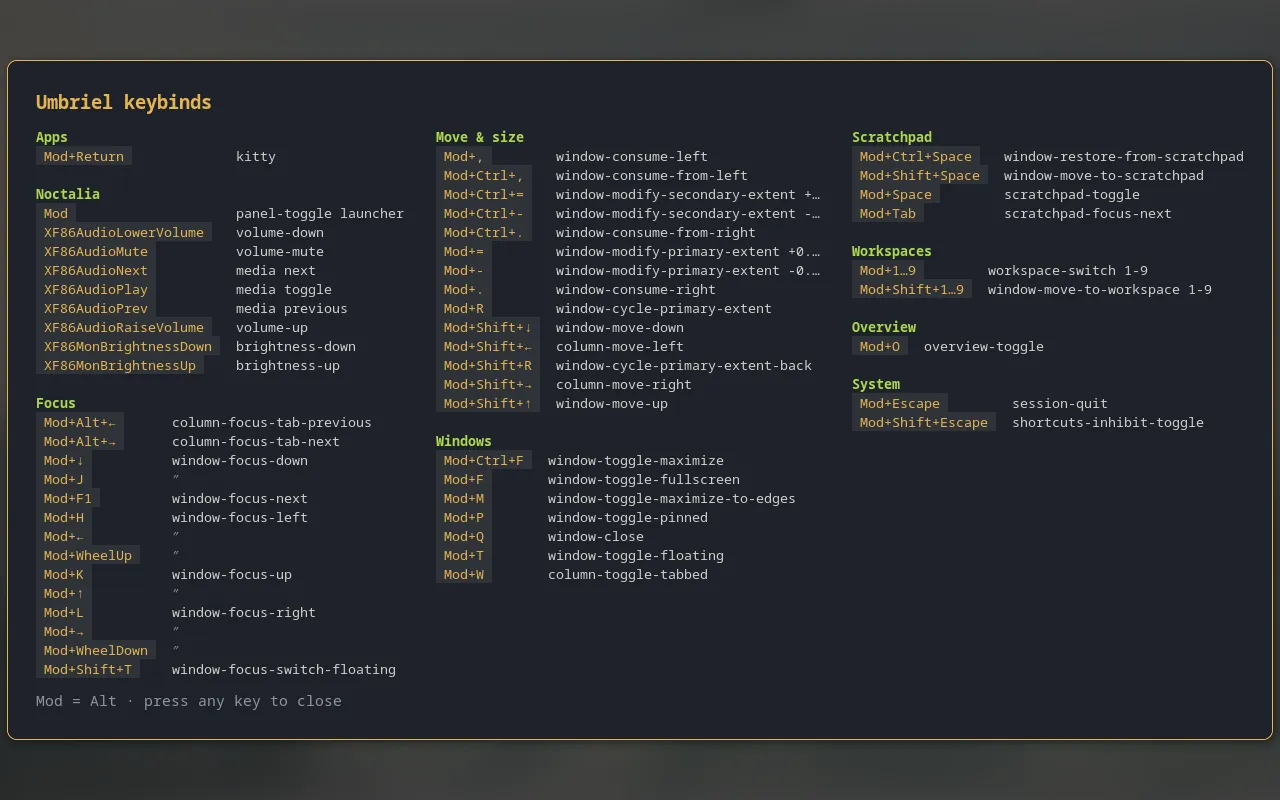
Section titled “First keys”The cheatsheet lists every active keybind; press any key to close it. With the packaged configuration, Mod+Return opens kitty, Mod alone toggles the Noctalia launcher, Mod+Q closes the focused window, and Mod+O opens the overview. Mod is Super, or Alt when Umbriel runs nested. The full list is under Default keybinds.
Starting configuration
Section titled “Starting configuration”The packaged starting configuration is examples/config.toml. Copy it before making local changes:
mkdir -p ~/.config/umbrielcp /usr/share/umbriel/config.toml ~/.config/umbriel/config.tomlA manual installation under /usr/local places it at /usr/local/share/umbriel/config.toml. Nix users should prefer programs.umbriel.settings in Home Manager or hjem.
Umbriel applies most changes when you save the file. Errors and warnings appear on screen, and umbriel config validate checks a configuration without a running session. See Configuration for file locations, includes, and the general settings.
Screen sharing
Section titled “Screen sharing”Screen sharing in Discord, browsers, and other portal-aware applications needs xdg-desktop-portal-umbriel. If the picker does not appear, see Troubleshooting.
On rotated or flipped outputs, the shared cursor may appear offset because of a wlroots 0.20.2 cursor metadata issue.
Next steps
Section titled “Next steps”- Pick a layout and a workspace model.
- Configure your outputs, input devices, and keybinds.
- Use window rules for application-specific behavior.